
SOOCH.AI
SOOCH.AI
Generative Banking Using AI. (Internship)

Internship
10 weeks
Jun 2024- Sep 2024
concepts
Prototyping
User Flow
Branding
User Feedback
Project Overview
Challenge
Workflow
My roles
UX Design
UX Researcher
Visual Designer
Tools
Figma
During my internship at SOOCH.AI, our team was tasked with rebranding and redesigning an application that reimagines banking and finance through the lens of generative AI. The goal of the application was to streamline financial tasks, from managing documents to providing personalized financial recommendations. By leveraging AI, the app generates templates and automates tasks, making the user experience more efficient. Ultimately, the application is designed to assist users with banking tasks while offering AI-driven insights and recommendations to simplify their financial management.
Problem
We were given an initial design for SOOCH.AI, but it had significant usability and design issues that impacted the overall user experience. Through discussions with our team, we identified several key problems: unclear navigation, an inconsistent visual design, a lack of intuitiveness, and missing features that the company founder envisioned. These gaps made the platform feel disjointed and inefficient for users.
How can we refine the existing design of SOOCH.AI to improve usability, create a cohesive and visually appealing interface, and integrate the missing features to enhance the overall user experience?
Before starting the design, we mapped out the application's workflow to gain a clear idea of what needed to be implemented. Here’s what we outlined:
1. Home: The home page workflow includes a login screen and a dashboard where users can view all their projects, from drafts to completed ones. From the homepage, users can also create new projects.
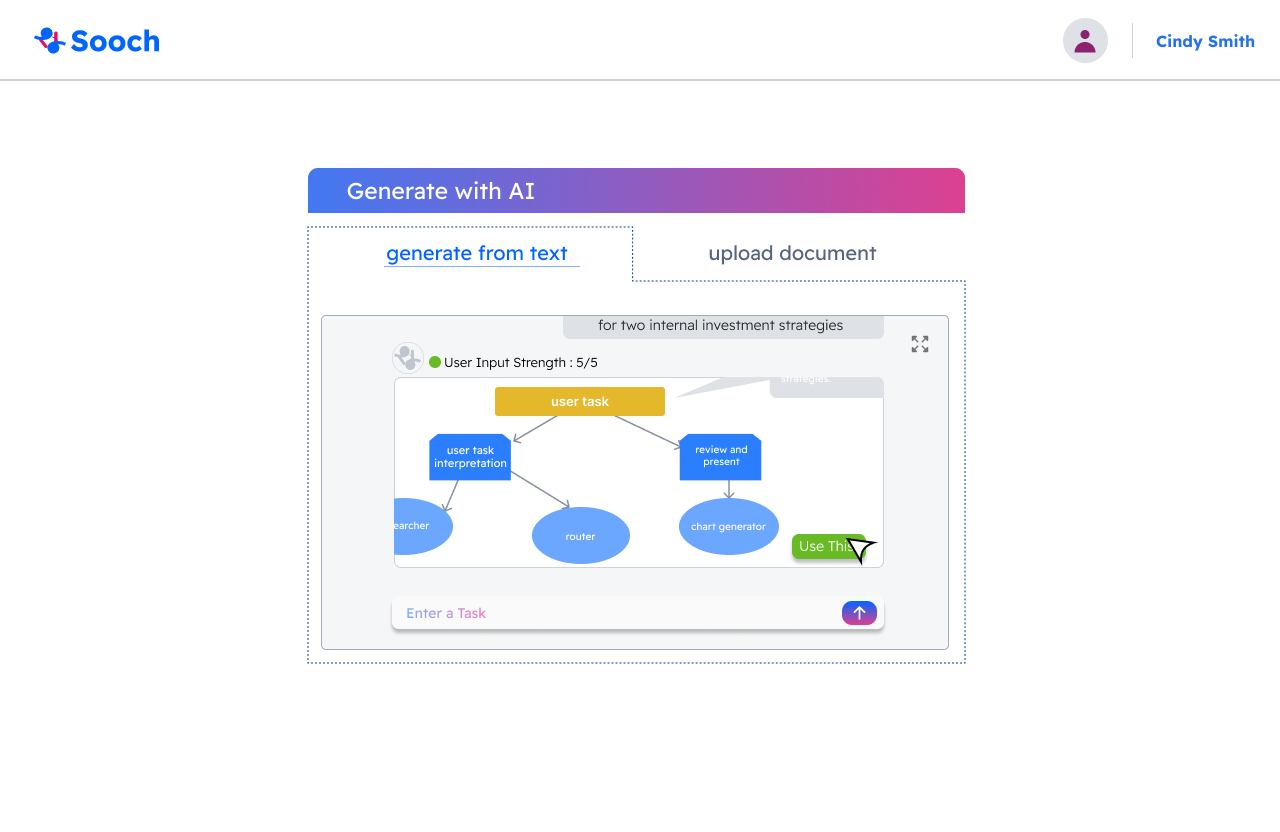
2. Generate with AI Prompt: One feature allows users to create projects entirely through an AI prompt. This is facilitated by a chatbot that helps generate content tailored to the user’s needs, making the process intuitive and efficient.
3. Select a Template: Users can also start their workflow by selecting a pre-made template. Template options include Supervisor, Collaboration, and Hierarchical workflows. After selecting a template, users can modify it and add additional details to suit their specific needs.
4. Build Your Own Workflow: For more flexibility, users have the option to build their workflow from scratch. Whether they select a template or generate with the AI prompt, users retain the ability to customize and modify their workflows throughout the process.
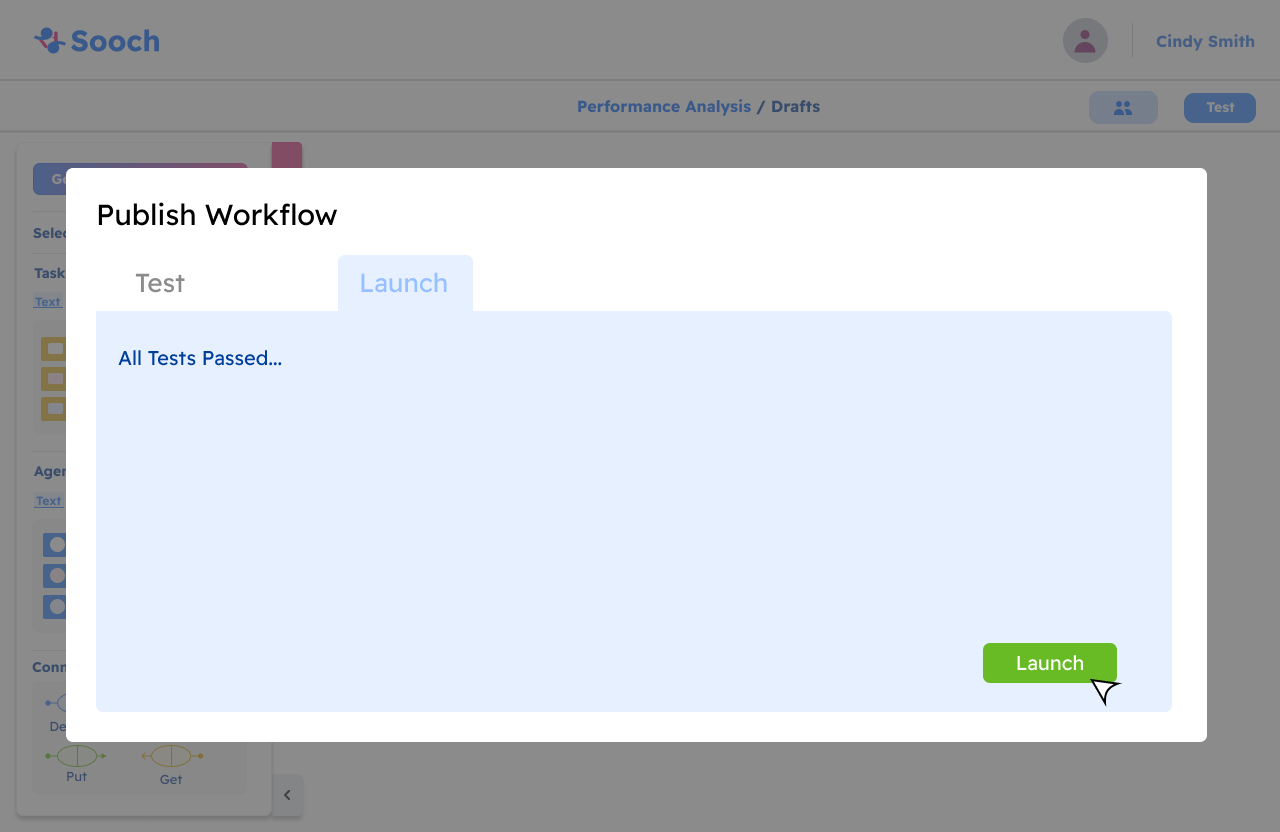
5. Testing and Launching: Once the workflow is complete, users can test and launch their application. After launch, the project will be accessible from the homepage for further management or updates.
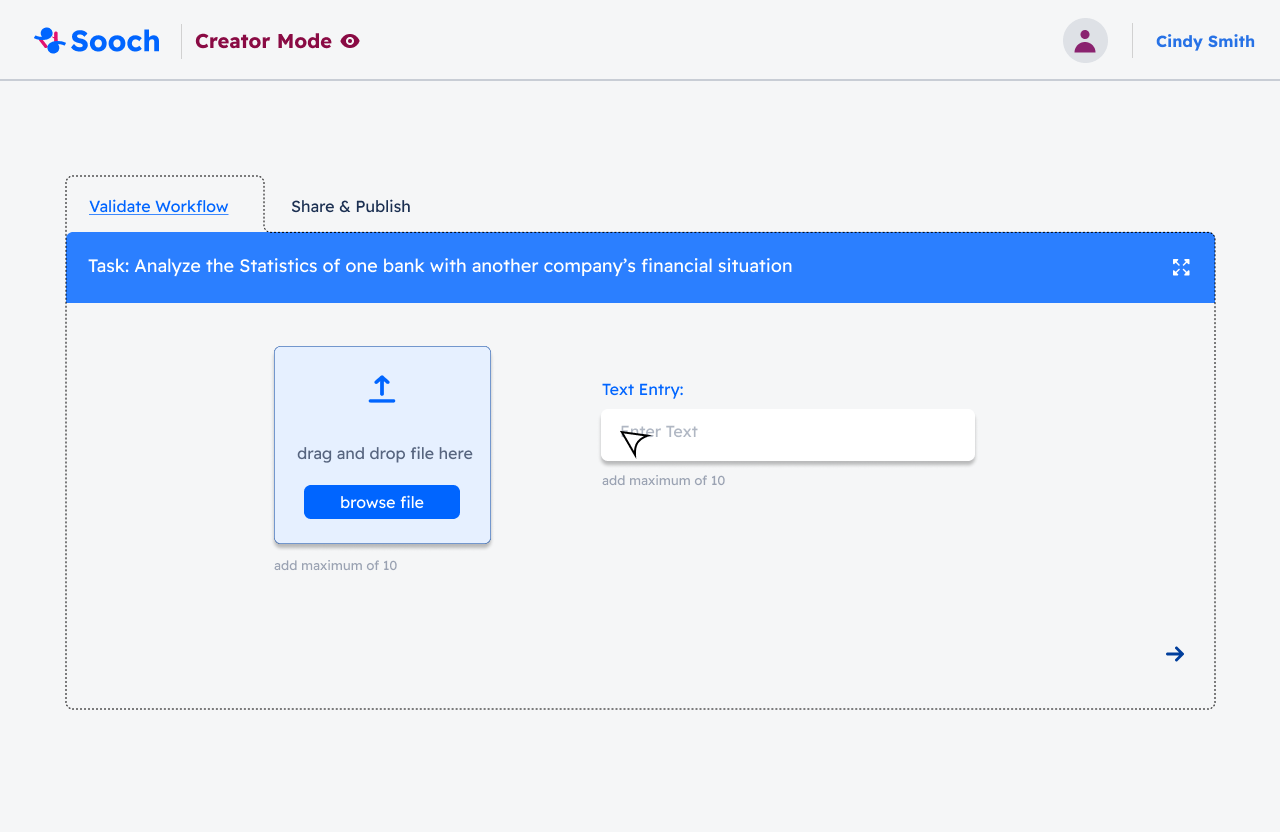
6. Validating and Publishing: This step ensures that exported files are properly validated and ready to publish, ensuring smooth delivery and usability.
7. Request for Proposal (RFP): We also created a workflow for managing RFPs. Users can add an RFP and access analytics for it. This feature includes:
Answer Engine: Summarizes the RFP for quick insights.
Executive Brief Creator: Generates PowerPoint presentations.
Response Creator: A document editor to craft responses for the RFP.
These workflows were designed to streamline the user experience and make the application intuitive, flexible, and effective.
design process
Design System
Before we got started into creating the general application for SOOCH.AI, our internship team wanted to create a design system, where we found the color style, typography, buttons, and icons.

Color StylE:
buttons:

Icons:

Prototyping
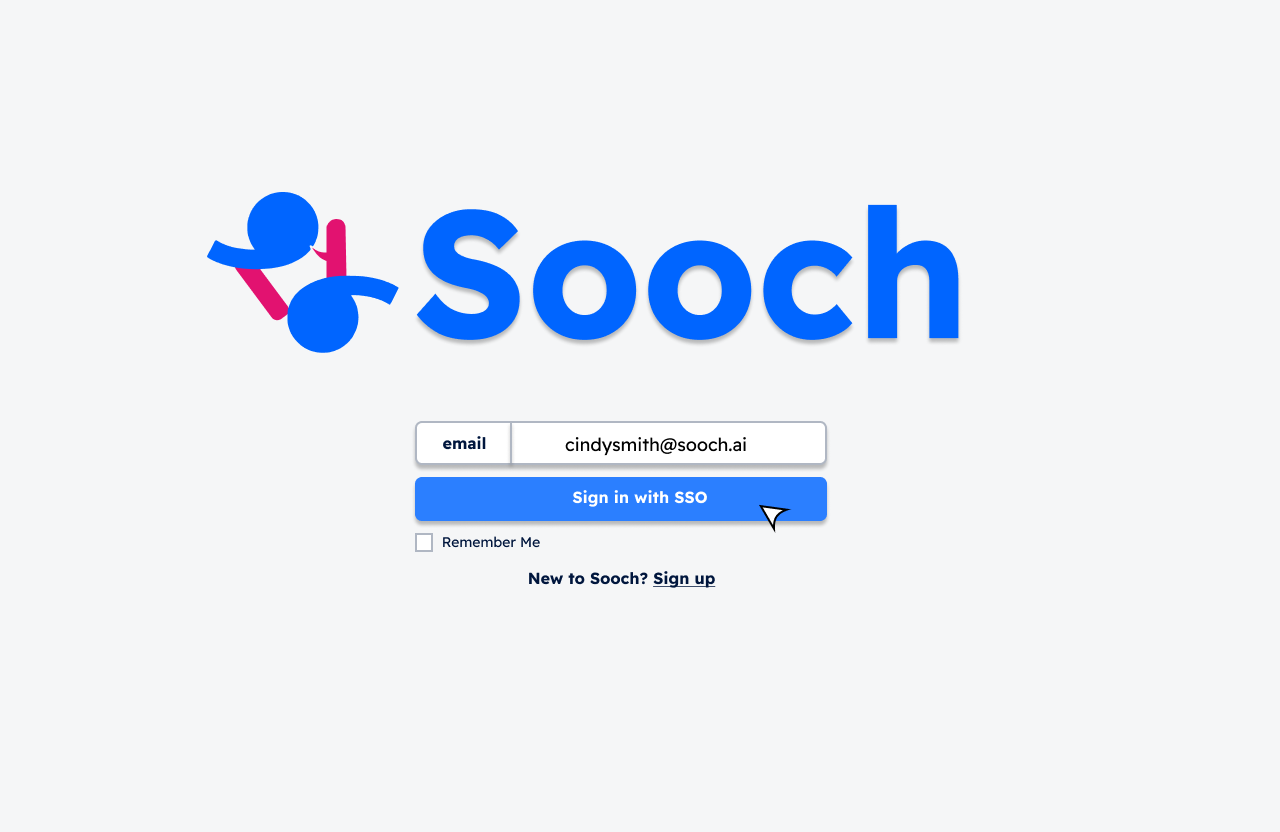
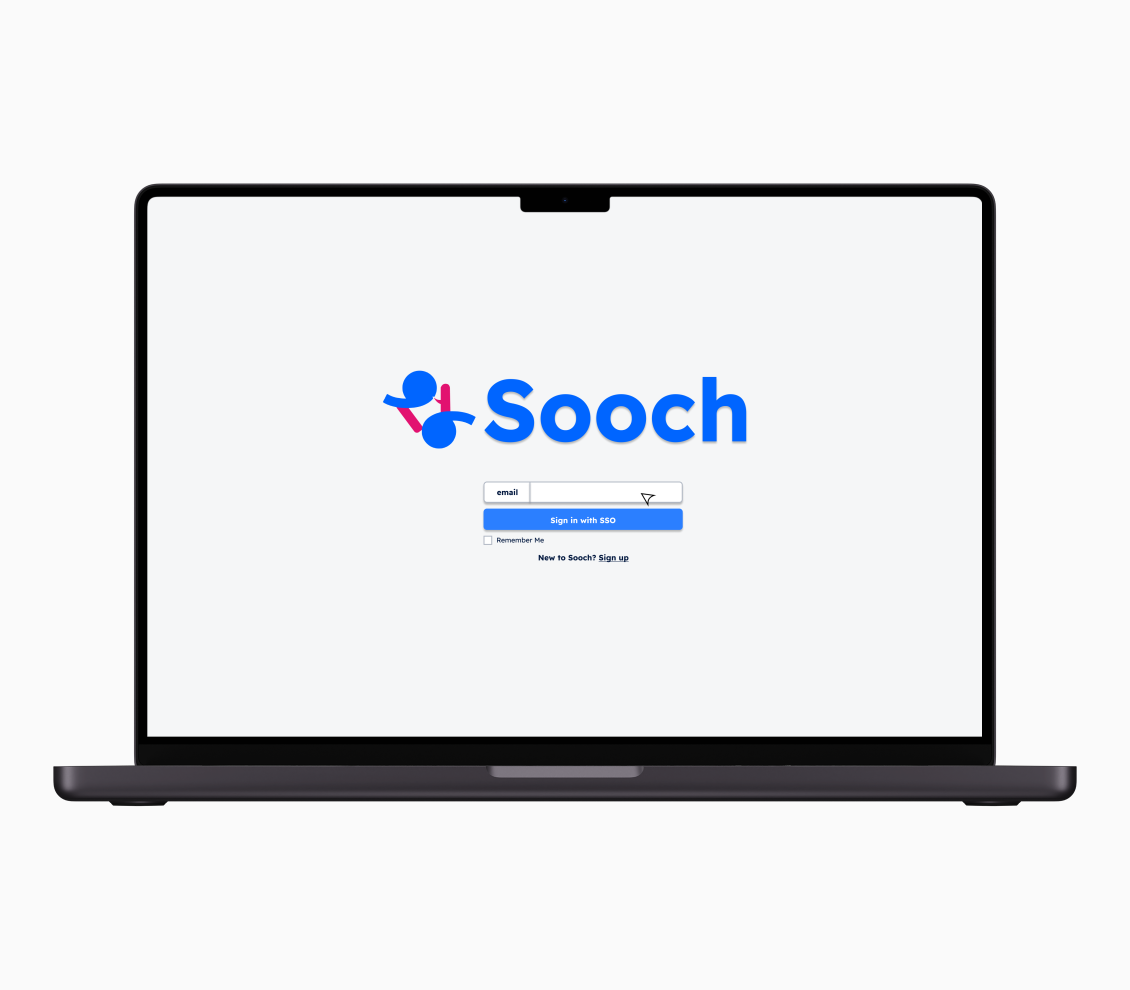
The first two screens displayed here represent the initial experience when opening the SOOCH.AI application. Users are directed to a login page, whether signing in to an existing account or registering a new one. These screens reflect our design system, incorporating blue and pink accents to align with the logo’s colors, while a subtle grey background ensures the imagery stands out without harsh contrasts, creating a clean and visually balanced interface.

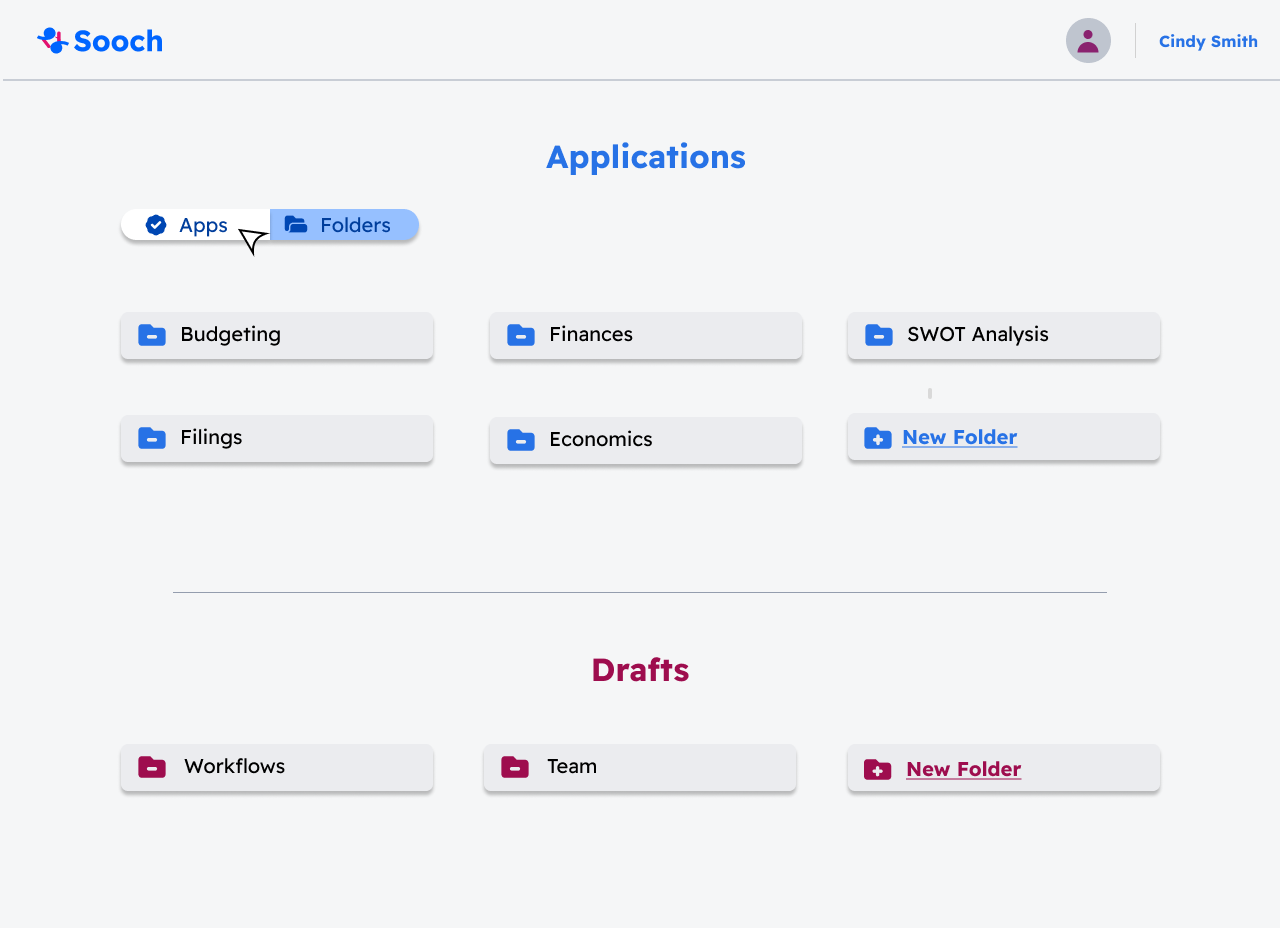
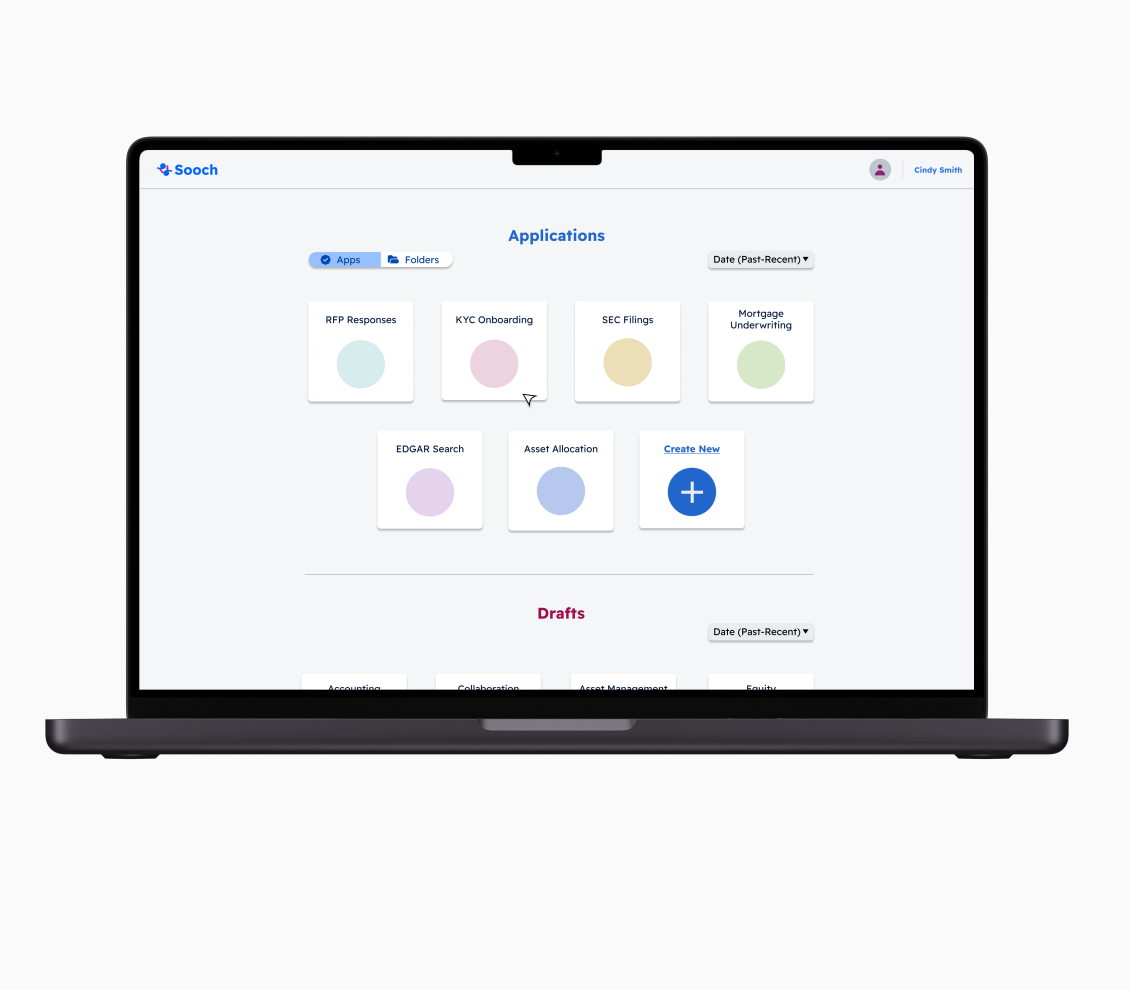
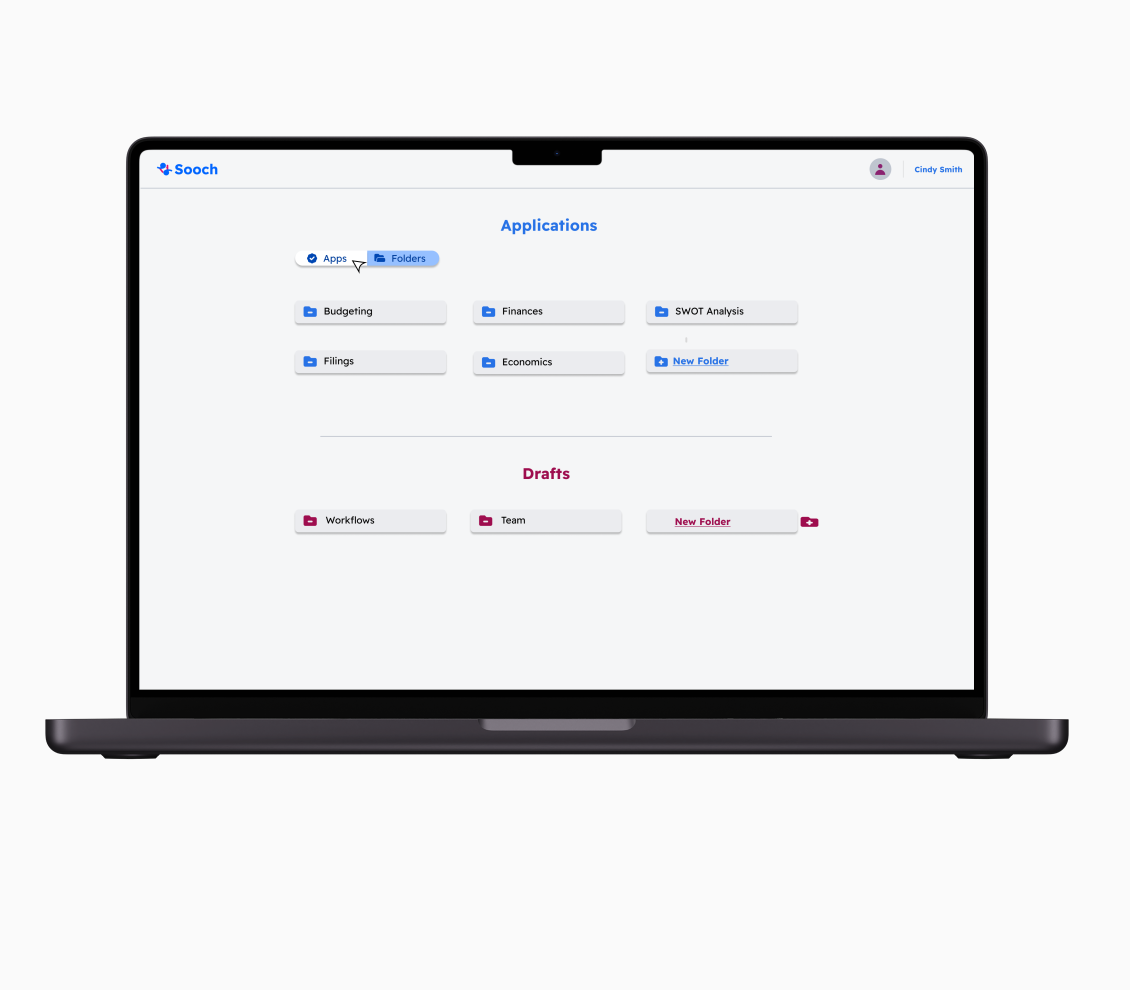
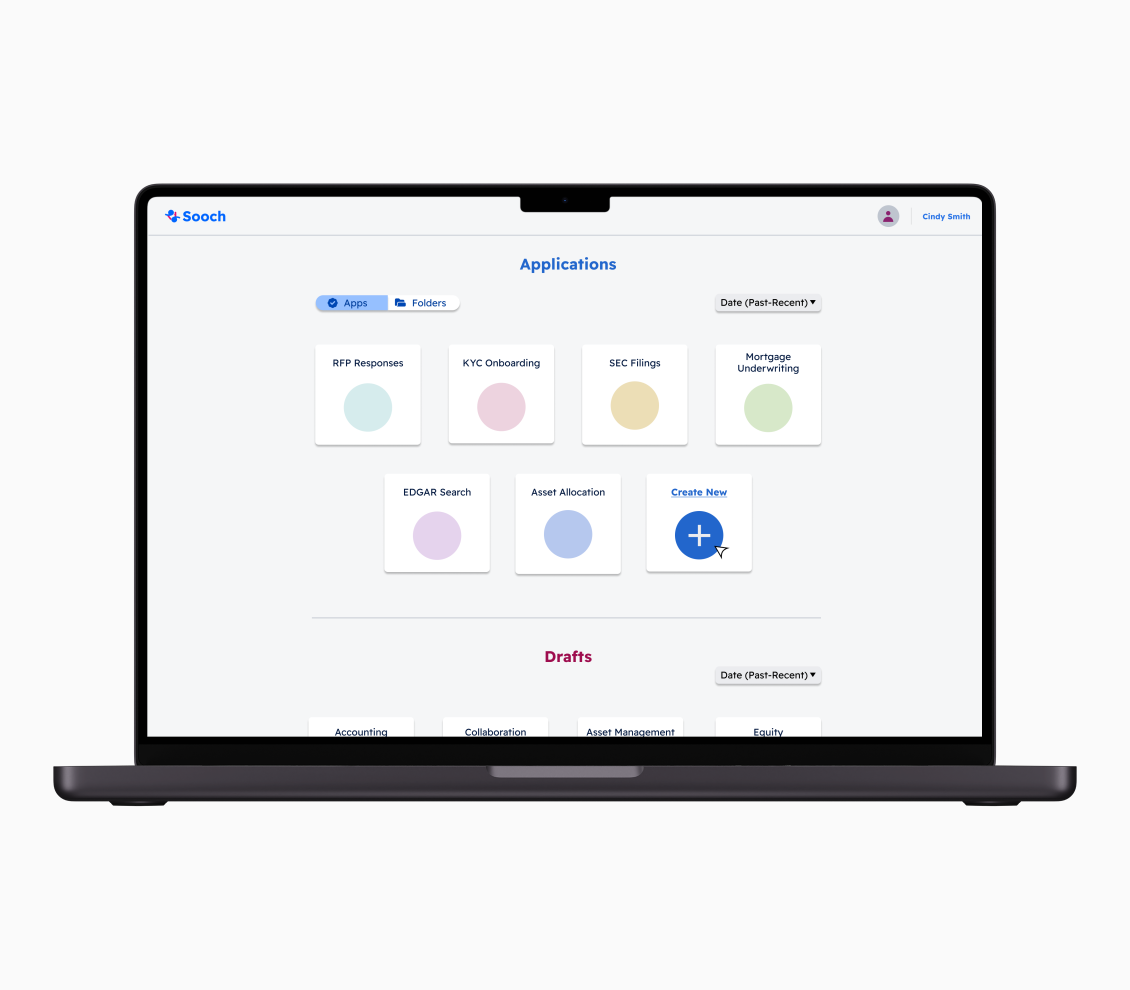
Users can organize and view their applications and drafts within folders for easier management. They can also start a new project directly from the homepage by clicking the plus (+) icon. As shown here, we applied different colors to indicate when a button is selected, using a secondary color from our palette. These color distinctions provide users with a more intuitive experience, clearly signaling their current location and navigation within the application.
The Generate with AI Prompt feature allows users to create their own workflow by interacting with an AI-powered chatbot for guidance. Users can access this feature in two ways: by selecting it after clicking the "Create New Project" button on the menu, or by adding a new page while working within an existing workflow. This flexibility ensures that users can seamlessly generate workflows whenever they need, enhancing both ease of use and efficiency.

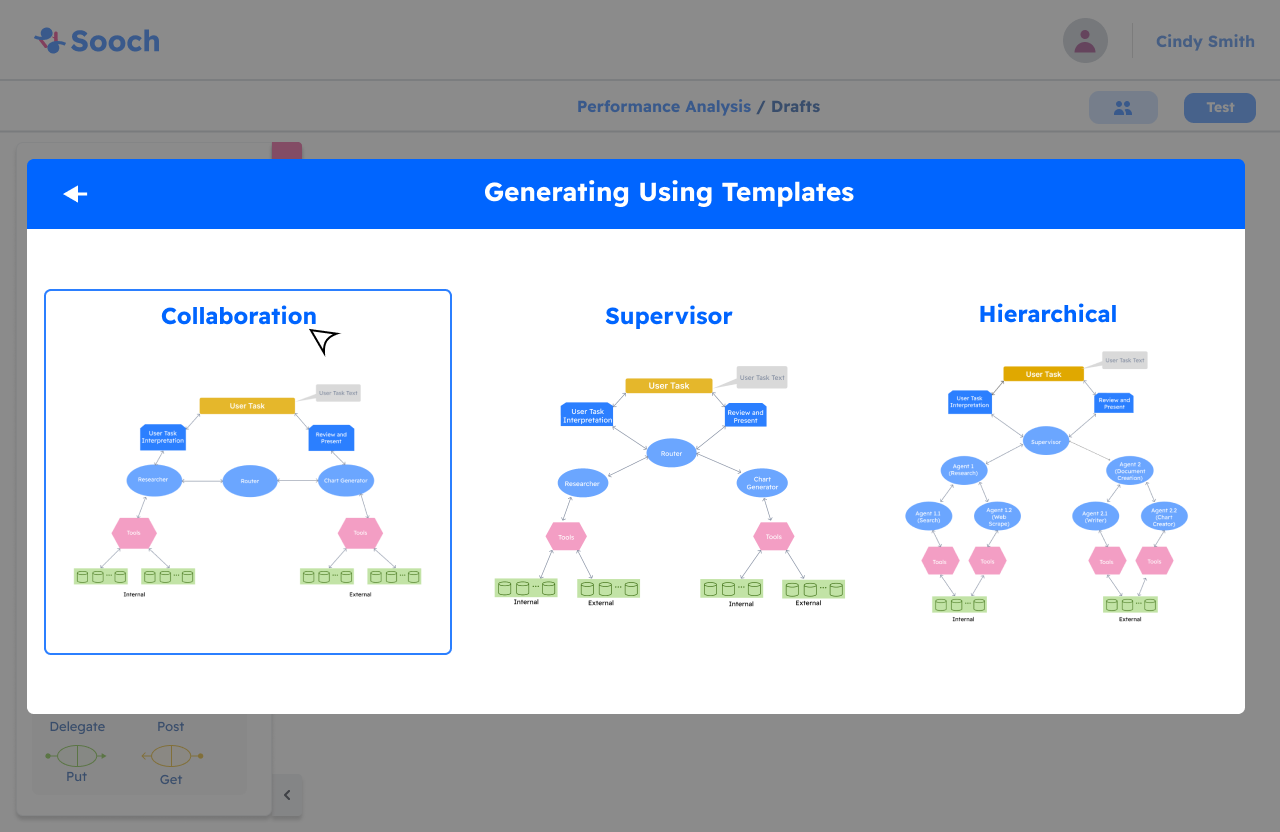
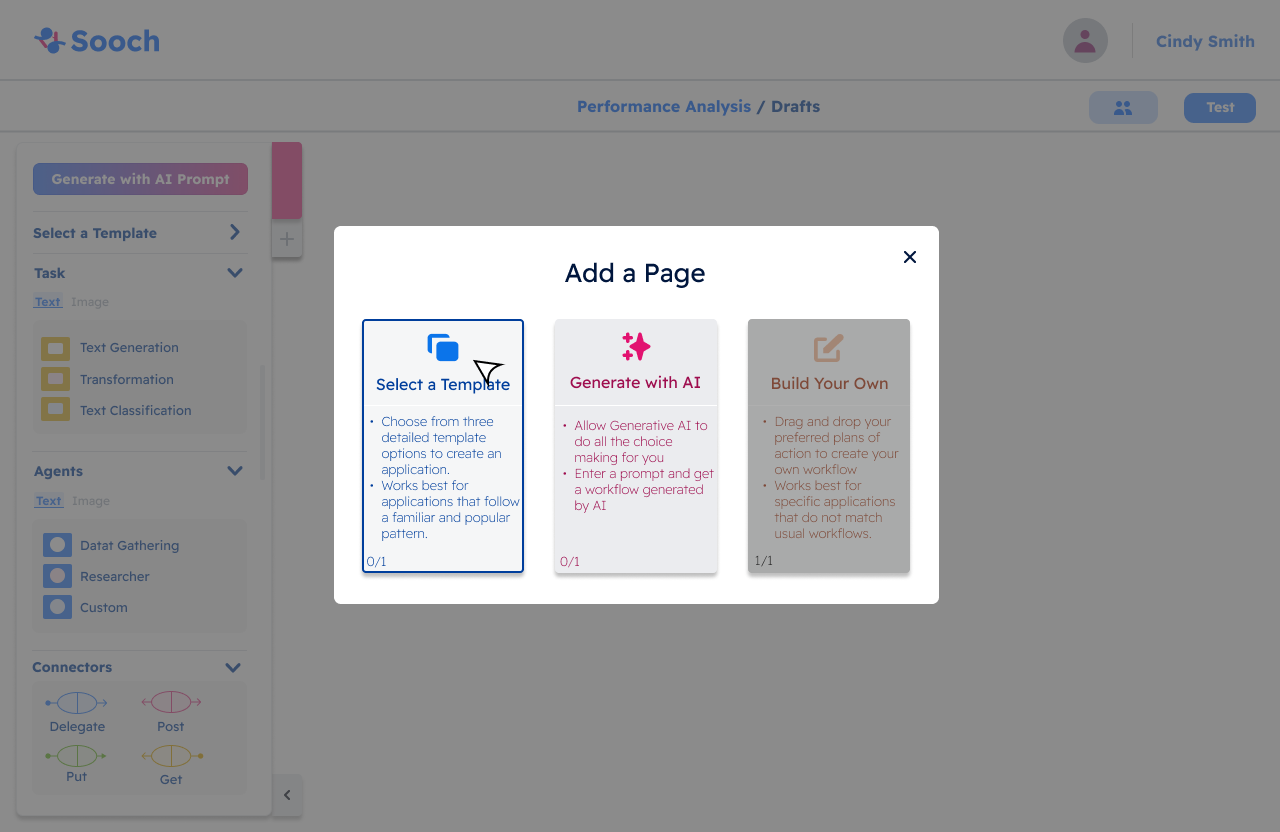
The second way users can create their application is by selecting a template. This can be done either by choosing the Template option from the menu bar or by clicking the plus (+) icon to add a new tab. If the user selects Add a New Tab, it will open the Add a Page popup, presenting three workflow options. Alternatively, selecting Template directly from the menu takes the user straight to the template selection screen, where they can choose between Collaboration, Supervisor, or Hierarchical templates.
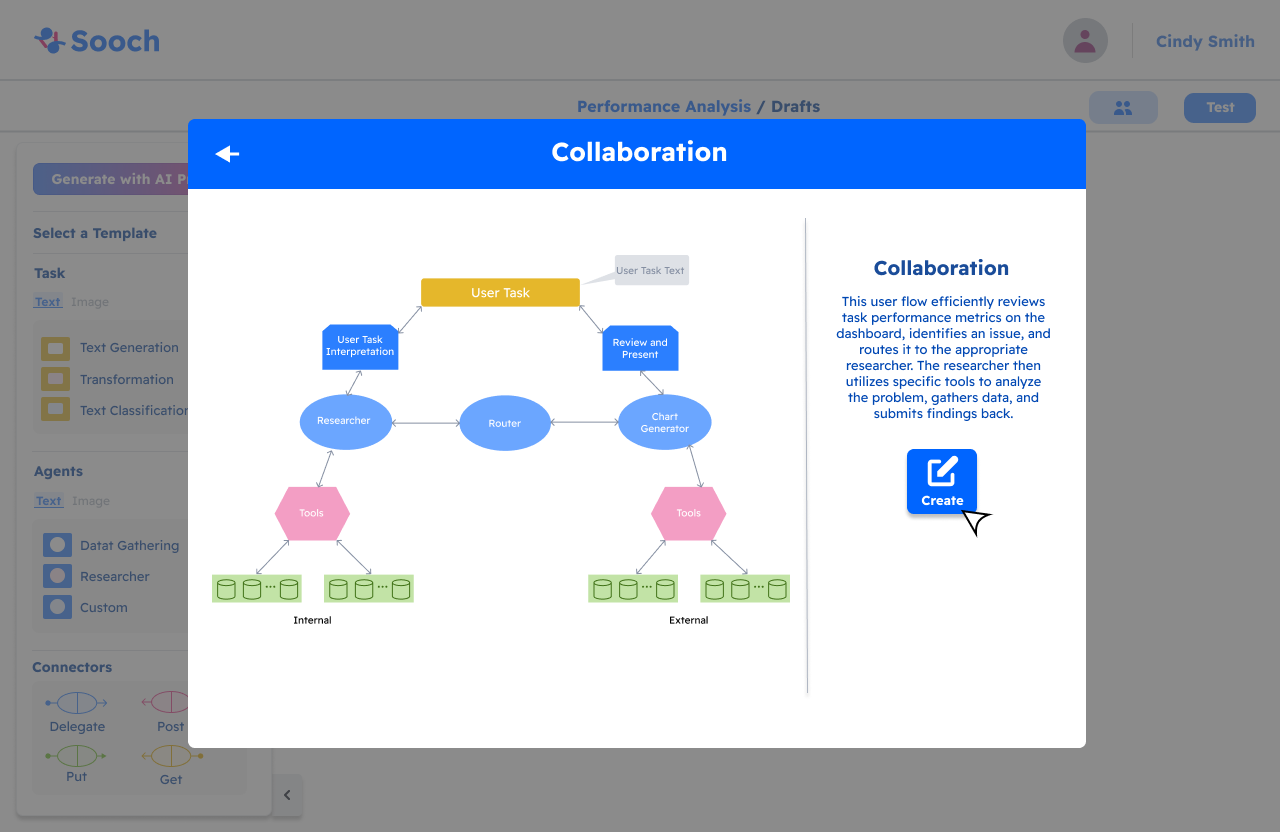
As shown above, the user selects Collaboration as their template. This action takes them to a confirmation page to ensure they want to proceed with the selected template. Once confirmed, the template is automatically added to the workspace, with full flexibility for the user to modify it as needed. After adding the template, the user is prompted to complete additional details for each part of the workflow, including Prompt, Tools, and LLMs, allowing them to further customize the flow.
Testing and launching (Workflow):
This workflow emphasizes the document creator’s ability to validate the document and manage collaborator permissions for viewing and editing. By enabling these features, the creator can ensure that only authorized individuals have access to the document, fostering a secure and collaborative environment.
Once the validation process is successful and any necessary adjustments to collaborator permissions are made, the finalized document will be readily accessible on the homepage. This allows users to easily locate and manage their projects, ensuring a seamless workflow as they continue to build and refine their applications. By streamlining these processes, we aim to enhance user efficiency and overall experience within the SOOCH.AI application.
Request For Proposal (Workflow):

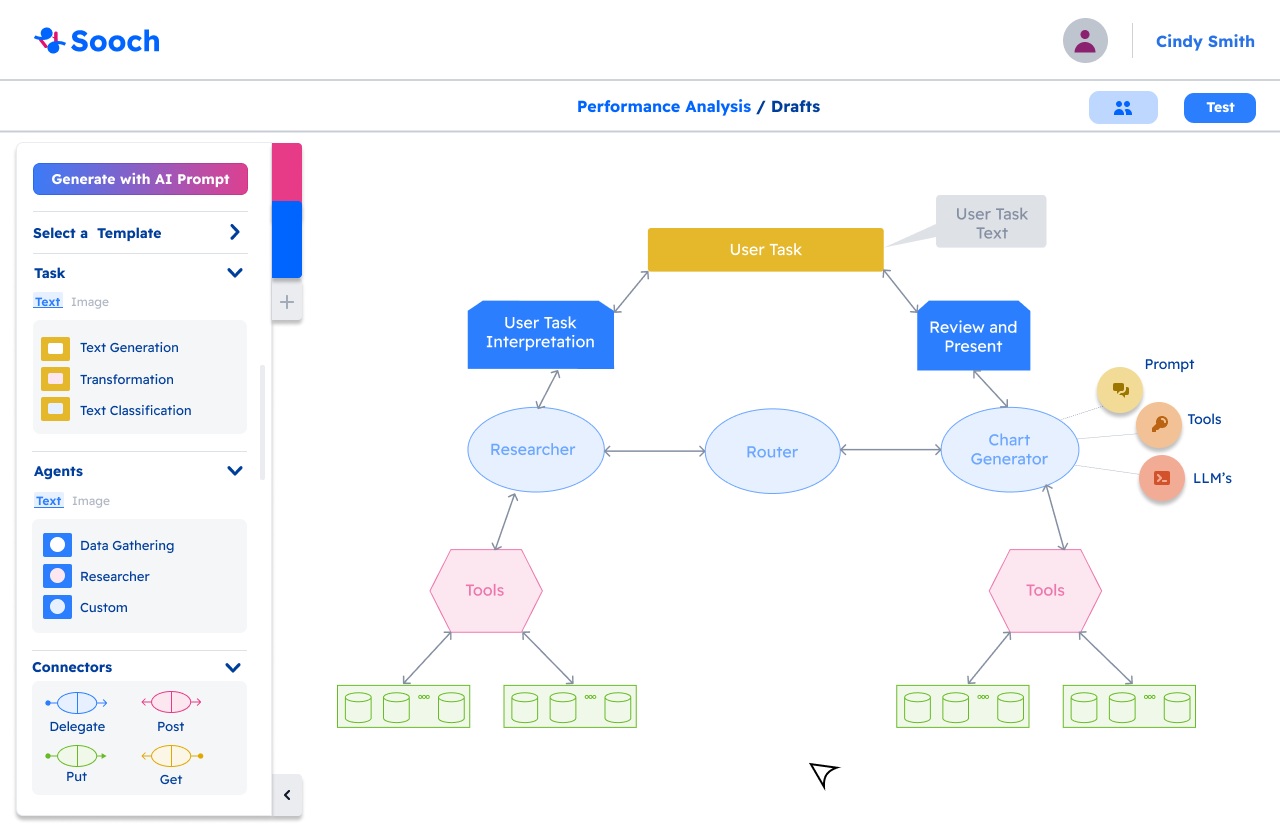

Within the Custom feature, users can further enhance their application by adding detailed information. When the custom section appears, two additional features become available. Since entering details for Prompt, Tools, and LLMs can be overwhelming, our UX team introduced a collapsible information bar on the right side of the screen. This bar appears only when users are working within the Router or Researcher circles, helping maintain a clean and focused interface. For better usability, once all the required information for Prompt, Tools, and LLMs is completed, a green checkmark appears, indicating that the input is correct and successfully processed.
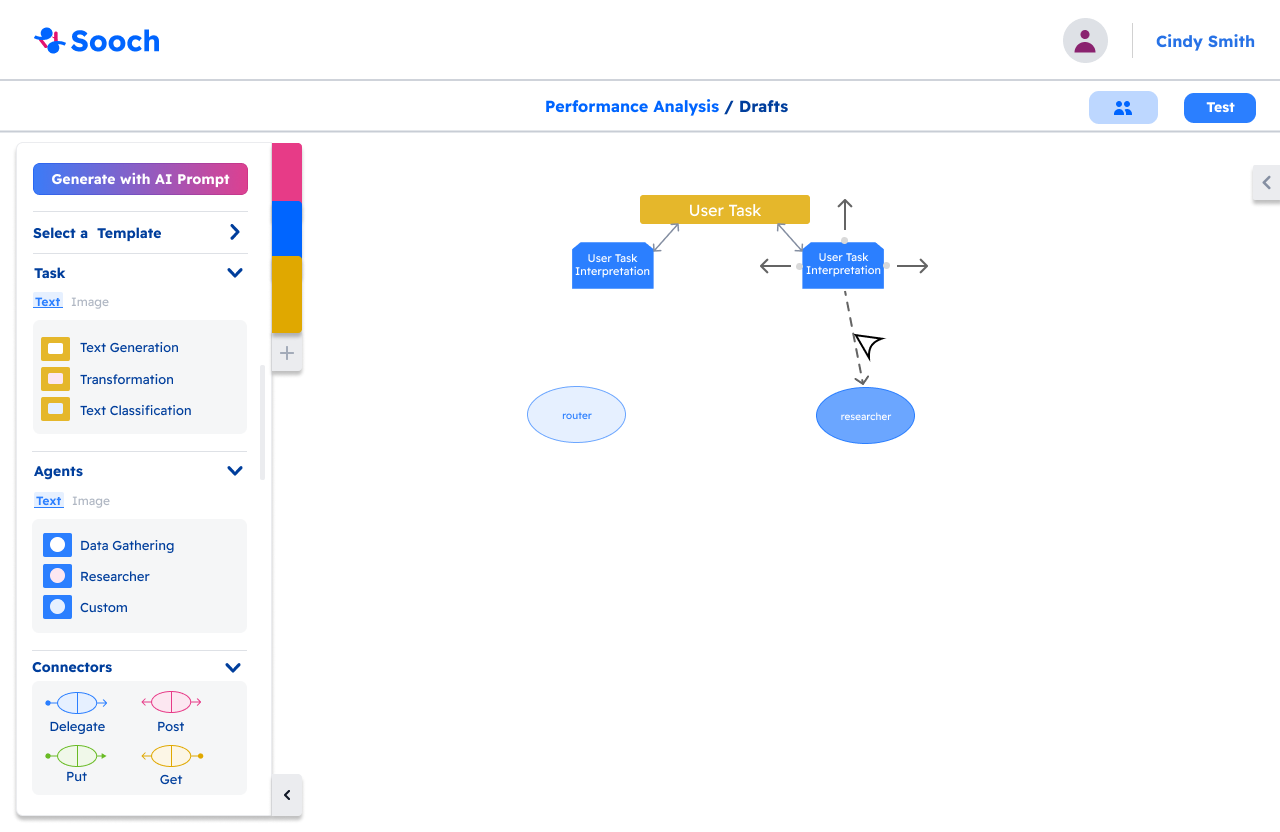
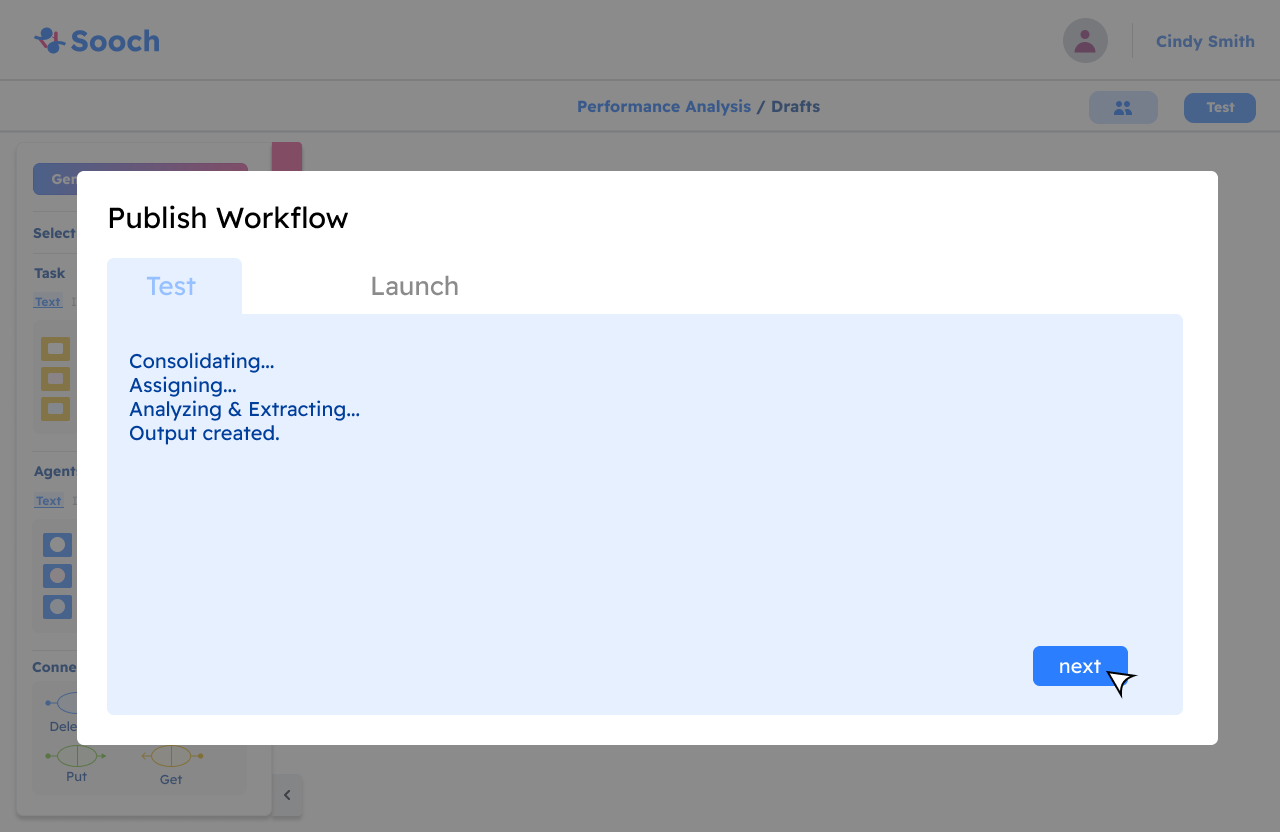
Once the application is complete, the user can proceed to test and launch it. A Test button, located at the top-right corner of the workspace, ensures easy access. Clicking the button opens a testing popup, where the user can initiate the testing process. After testing is complete, the user can validate the application. Once validated, the project becomes accessible on the homepage, appearing alongside previously completed applications.
Validating and publishing (Workflow):
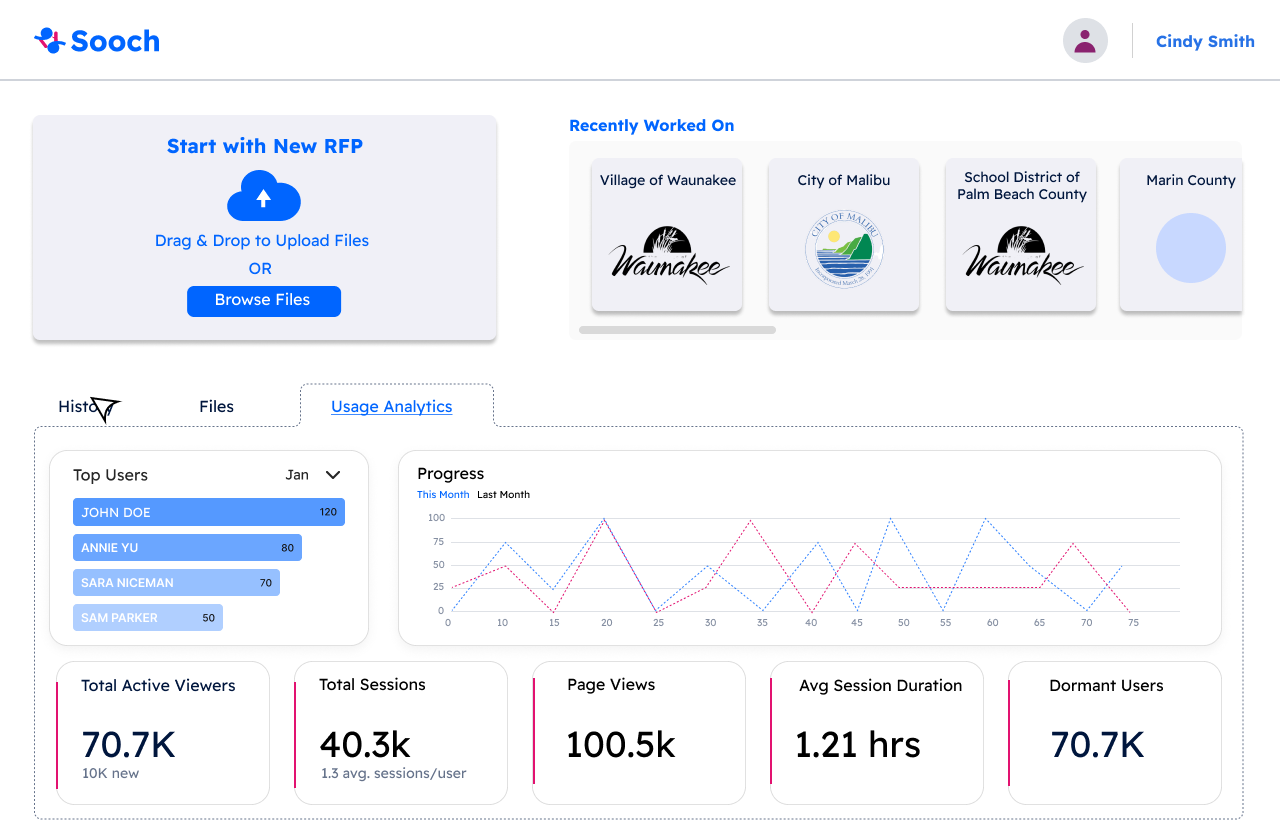
Lastly, the Request for Proposal (RFP) feature enables clients to access analytics related to their RFPs. Our design aims to provide three key functionalities: the Answer Engine, Executive Brief Creator, and Response Creator, all designed to be accessible and intuitive for users.
On the main RFP page, users will find the Add New RFP button on the left side, along with a list of previously added RFPs. The bottom half of the screen focuses on providing insights into the user's history, files, or usage analytics, allowing for comprehensive management and review of their RFP activities
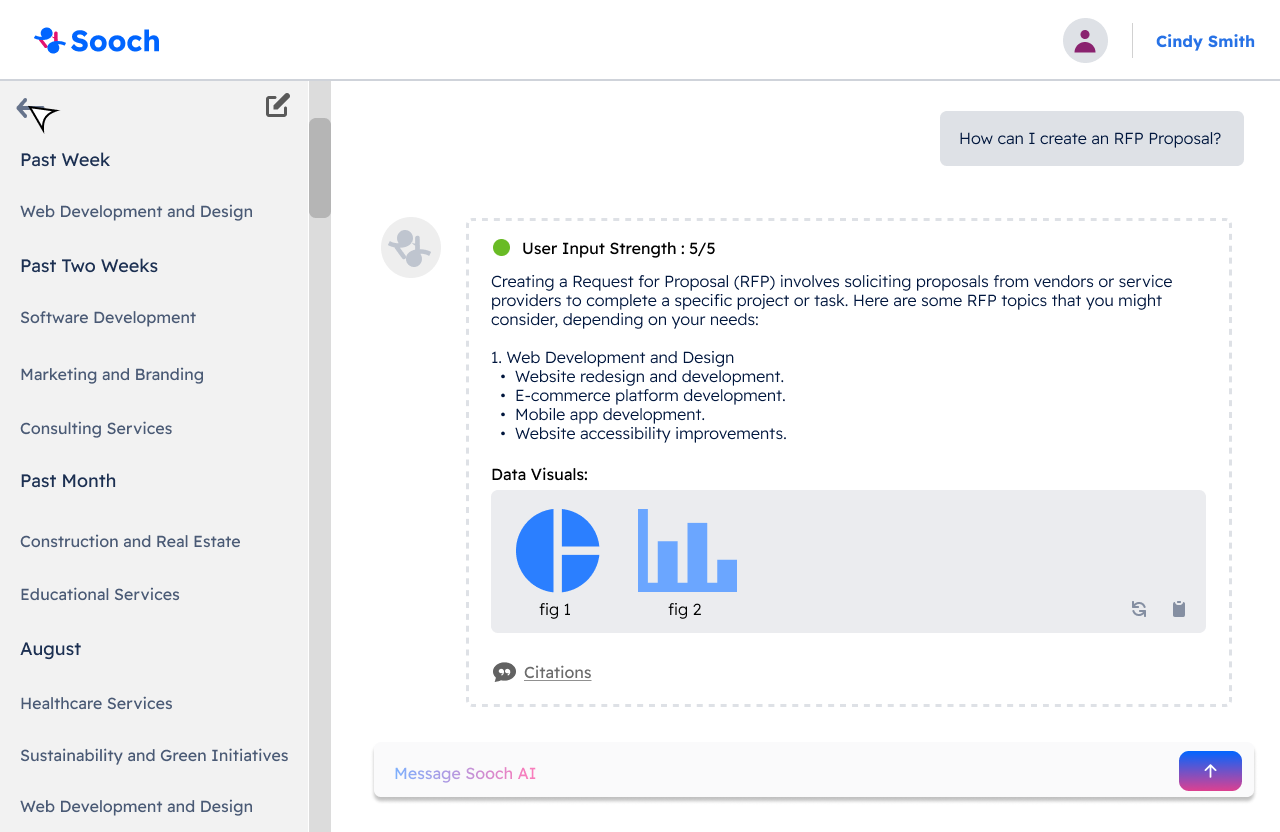
The Answer Engine: The Answer Engine includes a chatbot feature that allows users to ask questions and receive AI-generated responses, assisting them in navigating the RFP process. The design prioritizes clarity and readability, ensuring an intuitive experience for users. The interface displays the history on the left sidebar, while the chatbot occupies the right side of the screen, providing a streamlined layout for easy access and interaction.
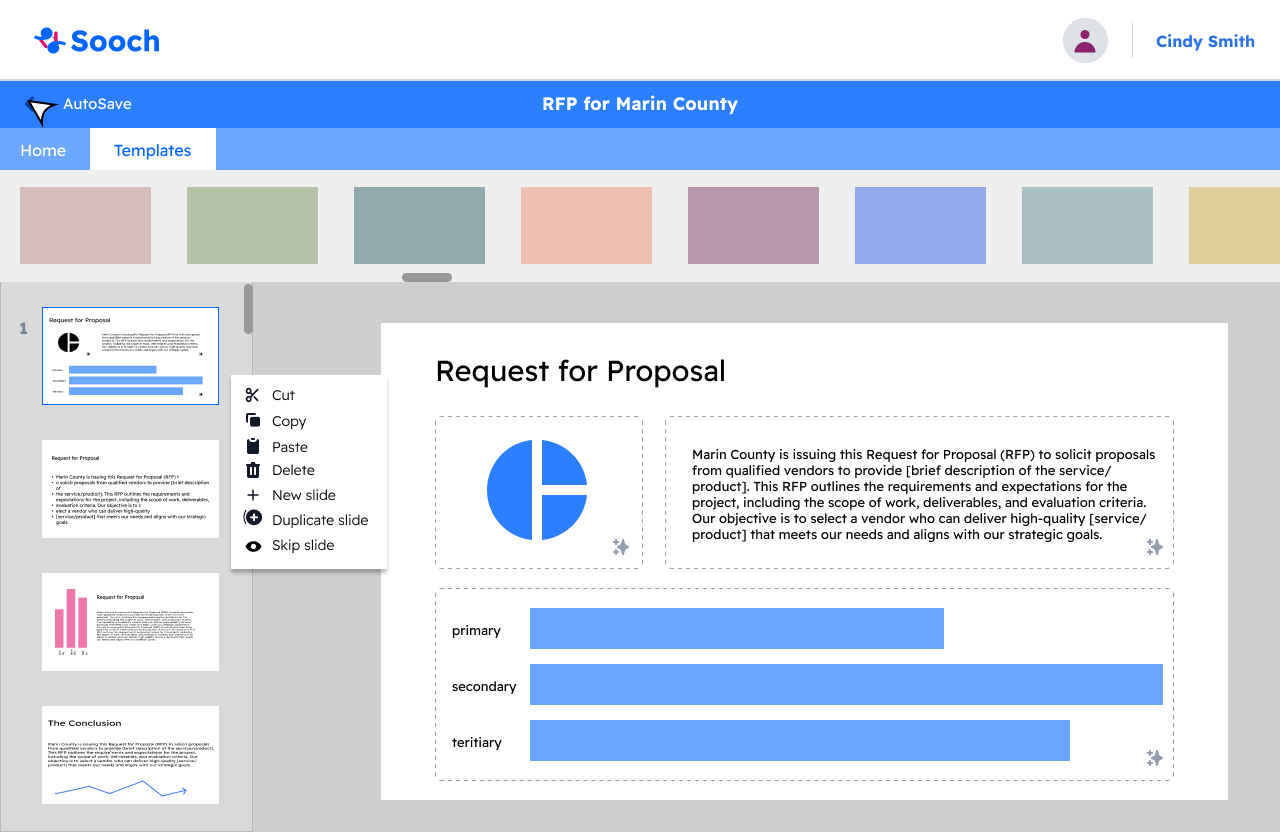
The Executive Brief Creator: This feature is designed to help users edit and modify content while summarizing lengthy information. With this goal in mind, the page layout is optimized for easy navigation, allowing users to quickly find the templates they wish to use. Additionally, it provides straightforward access to edit summaries and other related content, enhancing the overall user experience.


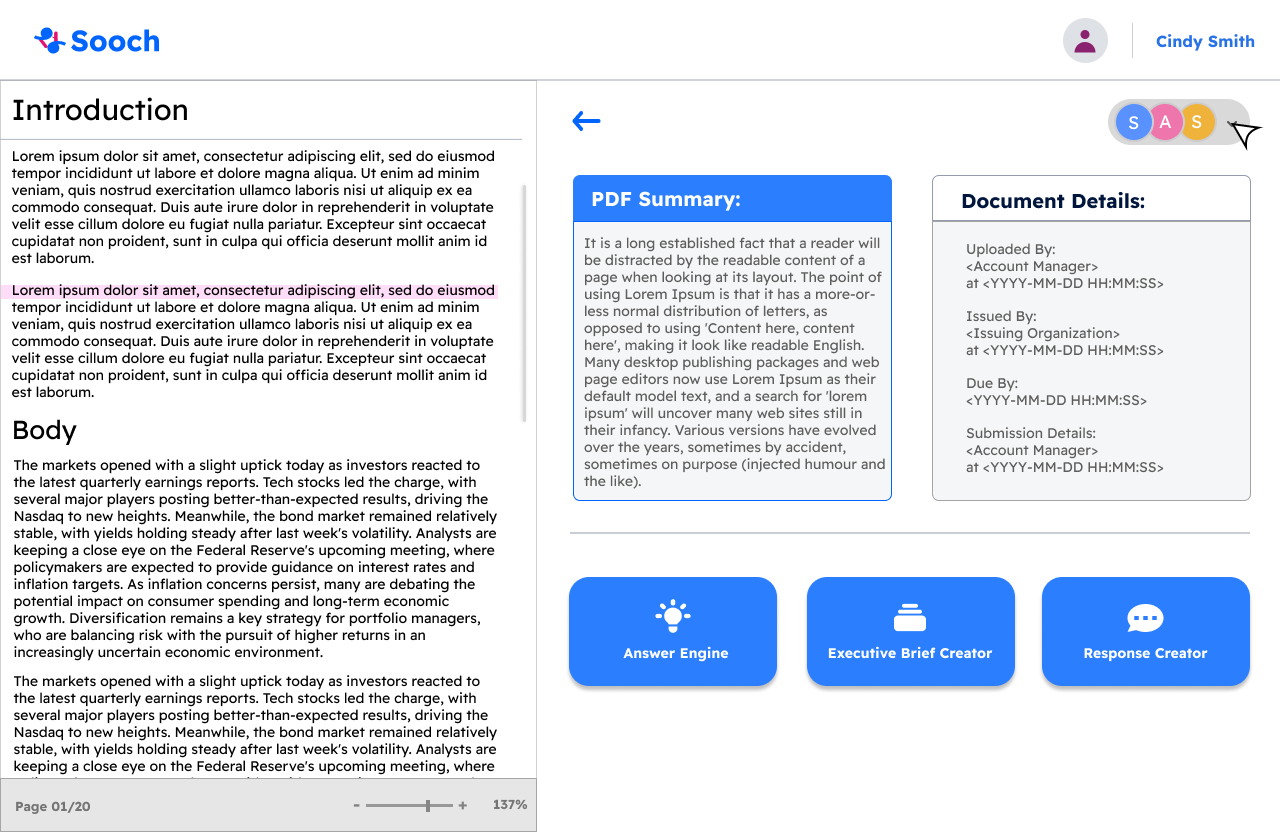
When the user selects a document from their history, they will be directed to a view of that document, where they can access the Answer Engine, Executive Brief Creator, and Response Creator options. Below, I will provide an overview of each feature.

The Executive Brief Creator: This feature is designed to help users edit and modify content while summarizing lengthy information. With this goal in mind, the page layout is optimized for easy navigation, allowing users to quickly find the templates they wish to use. Additionally, it provides straightforward access to edit summaries and other related content, enhancing the overall user experience.
Generate with AI Prompt (workflow):
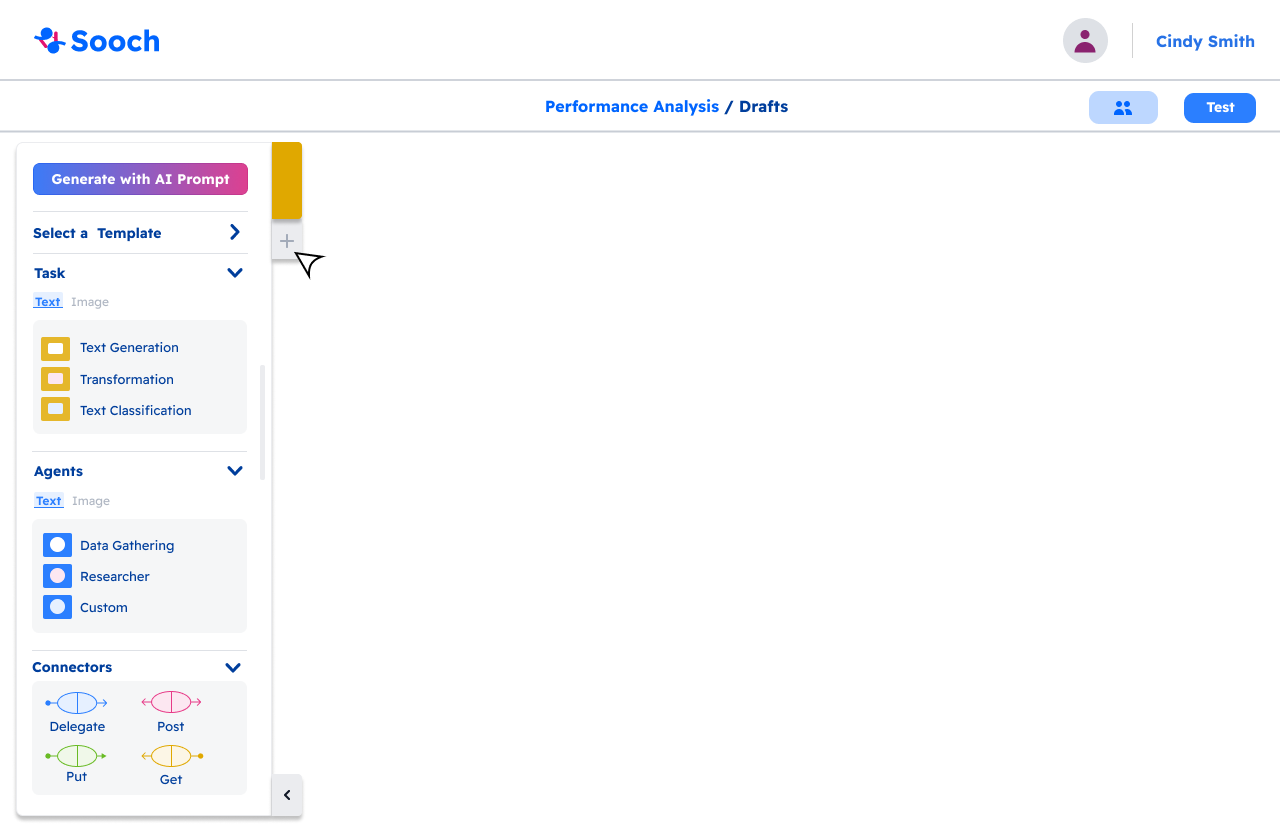
To access the Add a Page popup, users can click the plus (+) icon in the menu, as shown above. Once in the Generate with AI feature, a chatbot assists users in creating their own workflow by generating suggestions based on input text. After receiving the workflow suggestion, users can either accept it or make adjustments. If satisfied, the AI-generated workflow is added directly to the working page.
Regarding our color palette, we’ve implemented color-coding to help users easily identify their workflow type. Blue represents workflows created using templates, pink indicates those generated with AI, and yellow is used for workflows built from scratch. This visual system enhances navigation and ensures a smoother user experience.
Select A Template (Workflow):
Build your Own (Workflow):
The final method for creating a workflow is by building one from scratch. Users can do this by utilizing the menu to add unique components to the workflow. The menu offers several key options, including Task, Agents, and Actions, which are essential elements that make the application function. In this example, the user begins by selecting Custom from the Agents page. Upon clicking this option, a section labeled “Custom” is added to the workflow, giving the user full control to tailor it to their needs.
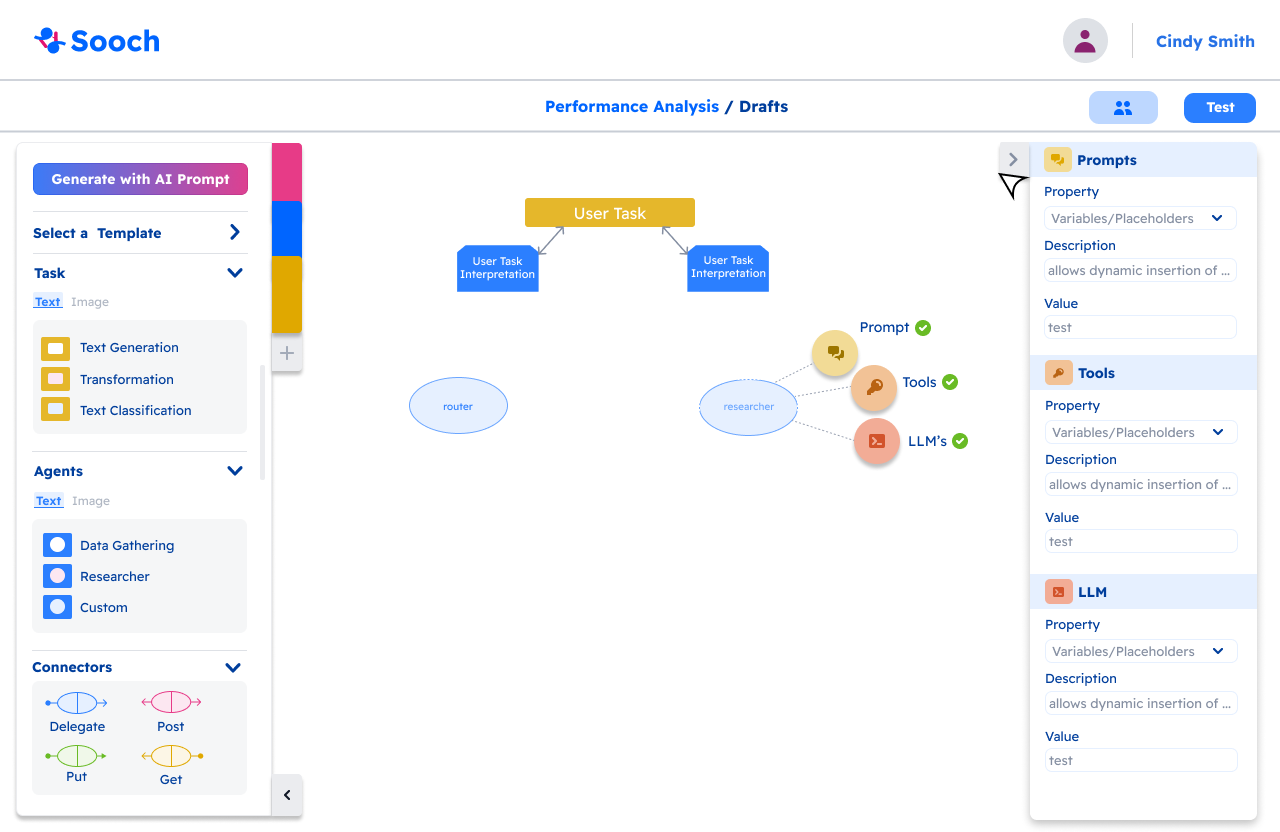
After completing the Prompt, Tools, and LLMs fields, the Researcher circle will turn a darker blue, signaling that the section is complete. The user can then connect the workflow components using a drag-and-drop arrow system. Our team opted for this drag-and-drop interaction to provide a more intuitive and user-friendly experience.
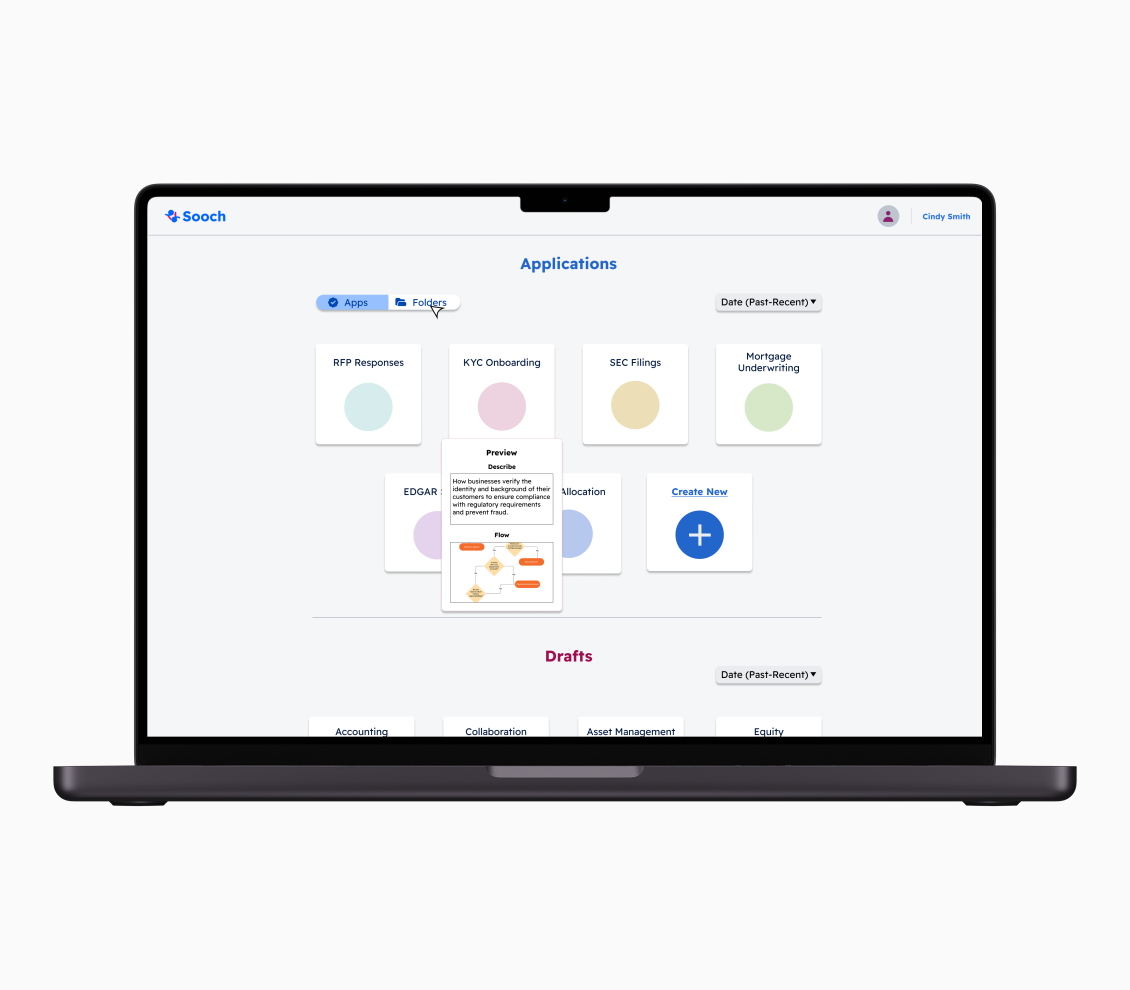
Once logged into the SOOCH.AI application, users are directed to the homepage, where they can view both completed projects and ongoing drafts. To ensure easy navigation, we incorporated icons and maintained the color palette from our design system. Users also have the flexibility to rearrange the order of displayed projects and can hover over a project to see a popup summary of their work.
typography:

WHy a design system?
The design system serves as a guide for the themes we’ll apply throughout the SOOCH.AI application. By establishing consistent elements like color palettes, typography, buttons, and icons, the design system ensures visual coherence across the entire platform. Beyond maintaining brand consistency, it also enhances efficiency by reducing redundancy, enabling us as designers to work within a well-defined design ecosystem. This approach streamlines the design process and ensures a cohesive user experience.


With our design system in place, our UX design team began creating high-fidelity prototypes for each of the application's workflows. Below, I’ll walk through each workflow in detail:
home workflow:
Full Design >
My Reflection *
If I were to highlight three key takeaways from my internship, they would be:
Feedback and Improvement: Learning to be patient during the design process can be challenging, especially with multiple iterations. However, staying open-minded and receptive to feedback from my peers and supervisors has significantly enhanced the quality of my work.
Project Management: I gained valuable experience in managing my time effectively alongside my colleagues. I also learned the importance of clear communication to ensure that we remain aligned and on track with our projects.
Technical Skills: My internship provided me with the opportunity to delve deeper into Figma, from understanding design systems to building components. I gained a solid grasp of Figma's structure and functionalities, which has greatly improved my design capabilities.